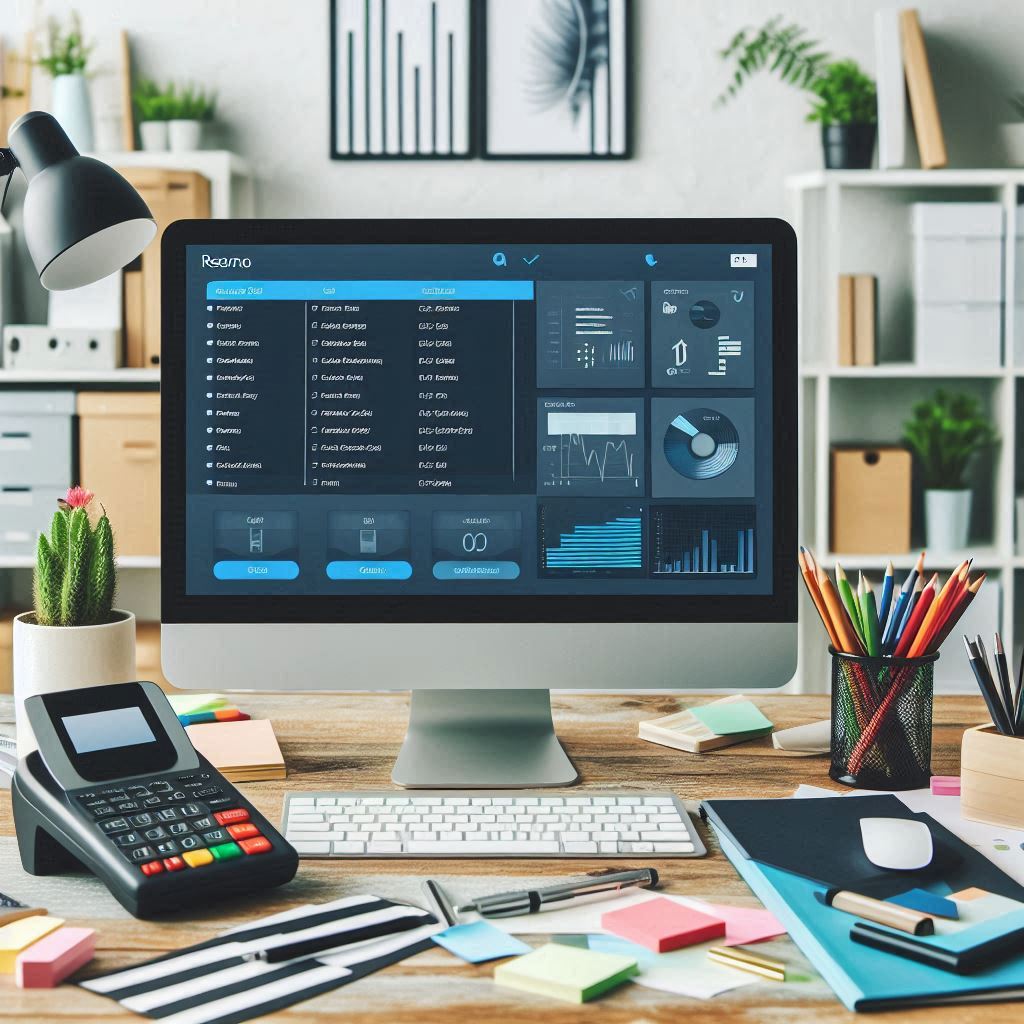
The Complete Guide to Setting Up Your Bookkeeping Software and POS Integration: For small business owners, keeping track of sales, invoices, and inventory can quickly become overwhelming. The good news is that modern bookkeeping software like Sage, Sage One (Sage Business Cloud Accounting), Xero, and QuickBooks, combined with a POS system, can automate much of this work.
This guide will walk you step by step through the process—from setting up your software to scanning a product and automatically updating your warehouse stock.
Why This Integration Matters
When your bookkeeping software talks to your POS system:
- Invoices are accurate and complete
- Inventory is automatically adjusted
- Sales, stock, and customer data are synchronized
- Manual errors and double entry are eliminated
- You get real-time insight into your business performance
Steps:
1: Gather Your Key Documents
Before touching any software, make sure you have:
- Chart of Accounts: Income, Expenses, Assets, Liabilities, Equity, Owner’s Capital, Drawings
- Customer and supplier lists
- Bank statements
- Inventory list: SKUs, product names, barcodes, and warehouse locations
Having this information ready ensures your setup is correct from the start.
2: Set Up Your Accounting Software
Choose one of the popular options:
- Sage / Sage One – robust accounting or cloud-friendly solution for small businesses
- Xero – cloud-based, great for multi-currency and remote access
- QuickBooks – beginner-friendly, easy to use
Then:
- Create your company profile – business name, registration number, financial year-end, default currency
- Set up your Chart of Accounts –
- Nominal accounts (Income & Expenses: 1000–4999)
- Balance Sheet accounts (Assets, Liabilities, Equity: 5000–9999)
- Include Owner’s Capital and Drawings
3: Connect Bank Accounts
- Link your business bank and credit card accounts to import transactions automatically
- Ensure bank feeds reconcile deposits and payments with your bookkeeping records
4: Add Customers and Suppliers
- Enter customer details for invoicing
- Enter supplier details to track purchases
- Include payment terms and VAT/tax rates for accurate reporting
5: Set Up Products for POS
For POS integration:
- Create Products in POS – include SKU, barcode, price, tax, and warehouse location
- Link POS Products to Accounting Software – each SKU in the POS must match the corresponding inventory item in your bookkeeping software
- Assign Warehouse Locations – essential if you manage stock in multiple warehouses
6: Integrate POS with Bookkeeping Software
Popular POS integrations:
- Sage One – Epos Now, AccuPOS, Talech, Shogo, Square POS
- Xero – Lightspeed, Hike, Loyverse (via Amaka)
- QuickBooks – Shopify POS, Square POS, Revel POS
Benefits:
- Automatic invoice creation
- Real-time inventory updates
- Accurate sales and customer tracking
- Reduced manual data entry
7: How a Sale Works
- Scan the Product – The POS reads the barcode and identifies the item
- Line Item Added to Invoice – Quantity, unit price, and tax are automatically populated
- Inventory Updated – Stock is deducted from the correct warehouse location in real-time
- Invoice Synchronized – The sale appears in your accounting software as a fully itemized invoice
- Reporting – Sales reports, stock levels, and revenue are updated automatically
This process ensures every product sold is accounted for, the warehouse is updated, and your financial records are always accurate.
8: Customize Reports & Alerts
- Set up Profit & Loss, Balance Sheet, and Cash Flow reports
- Configure alerts for low stock, overdue invoices, or tax deadlines
- Use these reports to make informed business decisions
9: Backup & Security
- Ensure cloud backups or schedule regular local backups
- Set user permissions for different access levels
- Use strong passwords to secure your data
Tips for Smooth Setup
- Start with recent transactions before uploading historical data
- Use templates for invoices and reports
- Maintain consistent SKUs and warehouse locations between POS and bookkeeping software
- Regularly check integration logs to ensure sales and stock sync correctly
Bottom Line
When set up correctly, your POS and bookkeeping software become a single, automated system:
- Scan a product → Line item on invoice → Warehouse stock updated → Real-time financial reporting
This integration saves time, reduces errors, and gives you a clear picture of your business, allowing you to focus on growth rather than manual bookkeeping.
💡 If this setup feels too tedious or time-consuming, let Correct Books take care of it for you. We’ll handle your bookkeeping, POS integration, and inventory management, so you can focus on running and growing your business with confidence.